1:1 Aspect Ratio Calculator
A 1:1 frame is a perfect square: the width and the height are identical. Square crops are common in social feeds, avatars, album art and product photography because they fit every layout without distortion. Use the calculator to check a size or resize to a square that matches your source.
1:1 Calculator
The ratio is pre-filled. Change either dimension and the other one follows.
- Fraction
- —
- Closest common ratio
- —
- Reduced by
- —
Custom Ratio — pick a preset or type your own
- New size
- —
- Total pixels
- —
- CSS
aspect-ratio: —;
Both fields are live. Edit New Width and the 1:1 height recalculates instantly; edit the height and the width follows. The derived dimension is rounded to the nearest whole pixel, while the value you typed is not altered.
Recently used sizes
Saved in this browser only. Click a size to load it back into the calculator.
Common 1:1 pixel sizes and resolutions
8 standard 1:1 sizes, from 100×100 at the small end of the range up to 3000×3000 at the top.
| Resolution | Name | Typical use |
|---|---|---|
| 100 × 100 | Thumbnail | List icons, small avatars |
| 512 × 512 | App icon | Icon sets, PWA manifest icons |
| 640 × 640 | Web square | Product grids, thumbnails |
| 1000 × 1000 | Marketplace | Etsy and similar listing photos |
| 1080 × 1080 | Social square | Instagram feed, Facebook posts |
| 1440 × 1440 | High-res square | Print-ready product shots |
| 2048 × 2048 | Retina square | Album art, hi-dpi favicons |
| 3000 × 3000 | Master square | Archival masters for later crops |
What is 1:1?
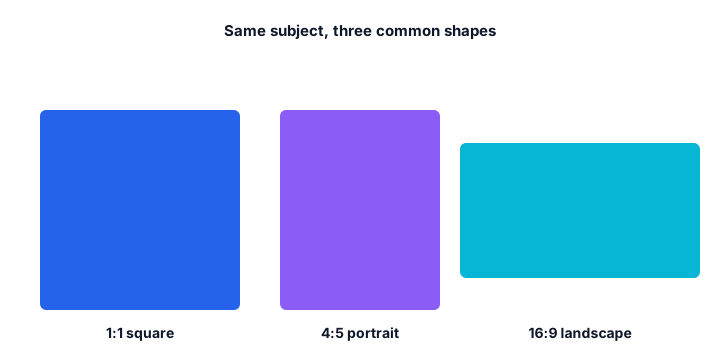
1:1 means one unit wide for one unit tall, a decimal value of exactly 1. It is the simplest ratio that exists, and the only one where rotating the frame changes nothing.
Squares are popular with layout designers because a square block is scale-invariant: it fits a thumbnail grid, a profile card and a large hero panel at the same proportions. When a platform crops an image for a square slot, it usually trims the longer edge from the centre, which is why important subjects should sit near the middle of the frame.
How to use the 1:1 calculator
Three routes to a square, whether you are cropping, checking or coding.
- Check whether a file is already square. Use Dimensions → Ratio and type the width and height. A true square reports 1:1 with a decimal of exactly 1; anything else is named, so you know how far off it is before you crop.
- Crop a rectangle down to a square. The safe limit is the shorter edge of your source. From a 1920 × 1080 frame the largest square you can take is 1080 × 1080 — the calculator confirms that ceiling before you open an editor.
- Set a square in CSS. Copy Ratio gives you 1:1 and Copy CSS gives you
aspect-ratio: 1 / 1;, which keeps an element square at any width without declaring a fixed height.
Every calculation runs in your browser. Nothing is uploaded, so unreleased or client-confidential images stay on your machine.
How to calculate 1:1
There is nothing to compute for a 1:1 frame, which is exactly why it needs a calculator less than any other ratio — but there is still one practical decision to make.
- Pick the number you already know: either the width, the height, or the size of the shorter edge of your source image.
- Use that single number for both dimensions — for example 1080 wide and 1080 tall.
- Decide how to fill the square: crop the longer edge from the centre, or pad the shorter edge with a matching background if nothing may be lost.
Worked example
A 4032 × 3024 phone photo is 4:3 and cannot become square without a decision. Cropping to 3024 × 3024 keeps the full height and removes 1008 pixels of width, 504 from each side. Padding instead means placing the whole 4032 × 3024 frame inside a 4032 × 4032 canvas, leaving 504-pixel bands above and below. If you only need a social-ready file, crop to 1080 × 1080 and keep the lost detail in the original.
Common mistakes with 1:1
A lingering habit from Instagram's early square-only era is assuming every platform still requires 1:1 — most now support 4:5 portrait posts as well, which typically get more vertical space in the feed. The other common issue is centre-cropping a rectangular photo down to a square without checking what falls outside the new frame — a wide group photo cropped to square can lose people from both edges.
How 1:1 compares to its neighbours
Closest in shape is 4:5 at 0.800 — instagram portrait feed posts. The decimal value, not the size, is what changes.
| Ratio | Decimal | Feel | Typical use |
|---|---|---|---|
| 4:5 | 0.800 | Taller | Instagram portrait feed posts |
| 1:1 | 1.000 | — | Square posts, avatars, album art |
| 1.91:1 | 1.910 | Much wider | Link-preview images |
Worked resize example
A 1:1 square at 2000 pixels per side is simply 2000 × 2000 — no reduction needed, since 2000:2000 already equals 1:1 exactly. Enter the same number in both fields on the calculator above and it reports 1:1 with a divisor of 2000.
Type your own numbers into the 1:1 calculator above and it will show the same division, plus the reduced ratio and the CSS to copy.
Common uses of 1:1
- Instagram and Facebook feed posts, which are displayed as squares in grid views.
- Profile avatars and account pictures on most platforms.
- App icons, favicons and PWA manifest icons.
- E-commerce product photos, where a square grid looks orderly.
- Album and podcast cover art, which distributors generally require to be square.
- Design systems and mood boards, where square tiles keep a grid balanced.
For a taller Instagram feed post, see the 4:5 guide.
Real 1:1 conversions
Taking the largest possible square from four common shapes, and what each crop gives up.
| Source | Source ratio | Square result | What changed |
|---|---|---|---|
| 1080 × 1080 | 1:1 | 1080 × 1080 | Already square — nothing to do. |
| 1920 × 1080 | 16:9 | 1080 × 1080 | 840 px of width trimmed (44%). |
| 3000 × 2000 | 3:2 | 2000 × 2000 | 1,000 px of width trimmed (33%). |
| 1080 × 1350 | 4:5 | 1080 × 1080 | 270 px of height trimmed (20%). |
The rule behind every row is the shorter edge: a square crop can never be larger than the smaller of your two dimensions. Anything bigger means upscaling, which adds pixels but no detail. Where a rectangle has to survive the crop, check the numbers in the image crop calculator before committing.
1:1 FAQ
What is the largest square I can take from a 1920 × 1080 image?
1080 × 1080. A square crop is capped by the shorter edge, which here is the 1080-pixel height, so 840 pixels of width are trimmed away. Anything larger than 1080 × 1080 would be upscaled rather than genuinely recovered.
Is 1080 × 1080 the same as 1:1?
Yes. 1080 and 1080 share a greatest common divisor of 1080, so the size reduces to exactly 1:1 with a decimal of 1. Any width and height that are equal is 1:1, regardless of how large the number is.
Which platforms still need a square image?
The Instagram profile grid crops every post to 1:1, profile pictures are square on most networks, and many marketplaces and app stores require a square listing image. Keeping the subject away from the top and bottom edges means it survives the grid crop.
How do I make a square thumbnail from a 16:9 video?
Take a centre crop equal to the frame height: from 1920 × 1080 you get 1080 × 1080. Frame the shot so the subject sits near the centre first, because a centre crop of a wide frame is the only square you can take without upscaling.
How do I crop an image to 1:1 without losing the subject?
Crop from the centre first, then shift the crop window until the subject is fully inside it. For portraits it is usually better to keep the full height and trim the sides; for landscapes, keep the full width and trim top and bottom.
What is the largest sensible 1:1 size?
Match the shorter edge of your source. Upscaling a 1080 × 1080 result from a 600-pixel original adds pixels but no detail. If you need a larger square, shoot or export a larger master.
Is 1:1 still used on Instagram?
The feed now supports 4:5 portrait, but the profile grid is still square. Posts are cropped to 1:1 for the grid, so a 4:5 image should keep its subject away from the top and bottom edges.
Does a square video look wrong on a widescreen player?
It gets pillarbox bars on the sides. That is normal and correct — the alternative, stretching, changes the ratio and distorts the image. Fill the empty space with a matching background colour if the bars are distracting.
Embed this 1:1 calculator
Add a free, live aspect ratio calculator to any page in one line of code - no account, no API key, no ads. Every embed credits the tool with a Powered by AspectCalc link, so your readers always know where it came from. See the full embedding guide for height and styling options.
<div class="aspectcalc-embed" style="max-width:100%">
  <iframe id="aspectcalc-frame" src="https://aspectcalc.com/embed?h=640"
          width="100%" height="700" style="border:0;border-radius:12px"
          loading="lazy" title="AspectCalc aspect ratio calculator"></iframe>
  <p style="margin:8px 0 0;font:13px/1.4 system-ui,sans-serif;color:#64748b;text-align:center">Powered by <a href="https://aspectcalc.com/" style="color:#2563eb;text-decoration:none">AspectCalc</a> - free aspect ratio calculator</p>
</div>
<script>
  // Optional: grow the frame to the widget's real height.
  // Delete this whole block to keep a fixed-height frame instead.
  addEventListener('message', function (e) {
    if (e.origin !== 'https://aspectcalc.com') return;
    if (!e.data || e.data.type !== 'aspectcalc-height') return;
    var f = document.getElementById('aspectcalc-frame');
    if (f) f.style.height = e.data.height + 'px';
  });
</script>
The frame starts at a fixed height, so your layout never
jumps. Resize it with ?h= - for example
https://aspectcalc.com/embed?h=520 - or keep the small script in the
snippet and the frame will follow the widget's real height instead.