Social Media Aspect Ratio Guide 2026 — Every Platform, Every Format
Every social platform crops, resizes or rejects images that don't match its expected shape. Upload a 16:9 photo to Instagram's grid and it gets squeezed into a square; upload a square video to TikTok and it plays with thick black bars on either side. Getting the ratio right before you export saves a re-edit later and stops your content from looking like an afterthought.
This guide covers the ratio each major platform actually uses in 2026, not just the one it's best known for — most platforms now support two or three formats depending on where the content shows up.
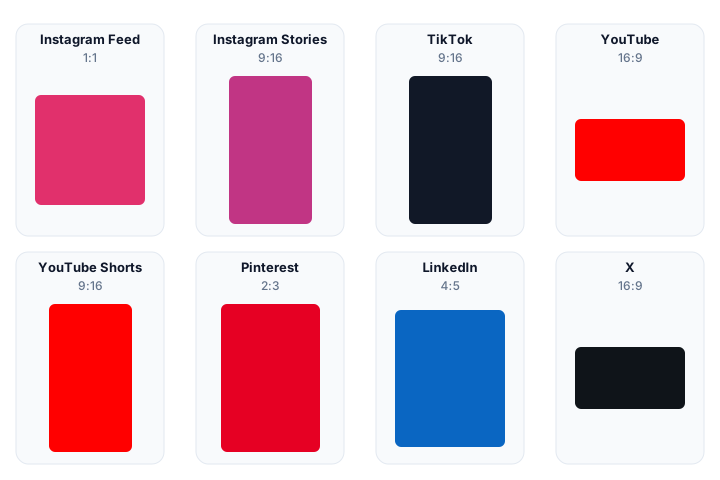
Instagram splits into three shapes depending on placement:
| Placement | Ratio | Pixel size | Notes |
|---|---|---|---|
| Feed post (square) | 1:1 | 1080 × 1080 | Safest choice — never cropped in the grid |
| Feed post (portrait) | 4:5 | 1080 × 1350 | Takes up more vertical space in the feed, generally more engagement |
| Feed post (landscape) | 1.91:1 | 1080 × 566 | Rarely used — landscape gets the least feed real estate |
| Stories / Reels | 9:16 | 1080 × 1920 | Full-screen vertical, camera-native shape |
| Profile grid thumbnail | 1:1 | — | Anything not already square gets center-cropped here |
The profile grid always forces a square crop regardless of what shape you originally posted, so if you post a 4:5 photo, check what the top and bottom edges look like once they're cropped away — that's what shows on your profile. The 4:5 guide covers the portrait feed format in more depth.
TikTok
TikTok is built around one shape: 9:16, at 1080 × 1920 — see the 9:16 calculator for a size table. Content that isn't 9:16 gets pillarboxed (black bars on the sides) or, worse, auto-cropped in a way you don't control. If you're repurposing landscape footage for TikTok, don't just letterbox it — recompose the shot so the subject fills the vertical frame, or use a blurred or extended background fill instead of hard black bars.
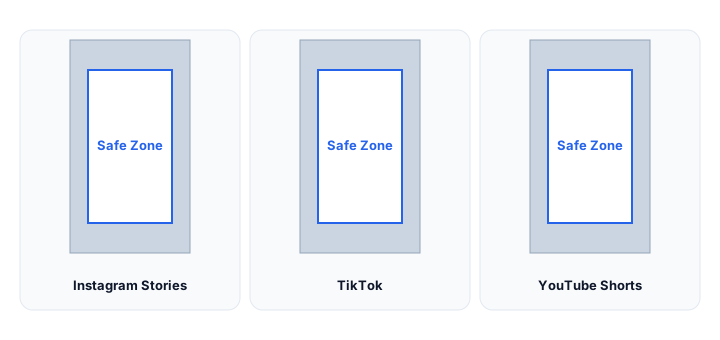
TikTok's Safe Zone matters here too: the top 100–150px, the interface overlay on the right side (like, comment and share icons) and the bottom strip (caption, username) cover a meaningful chunk of the frame. Keep key subjects and any on-screen text inside the middle 80% of the frame vertically.
YouTube
YouTube runs three different aspect ratios depending on content type:
- Standard uploads: 16:9, ideally at 1920 × 1080 or 3840 × 2160 for 4K
- Shorts: 9:16, at 1080 × 1920 — the same shape as TikTok and Reels
- Thumbnails: 16:9, at 1280 × 720 minimum — this is separate from the video itself and gets its own crop
A common mistake is exporting a video at 16:9 but designing the thumbnail as a screenshot from the video without checking that the important visual (a face, text, a product) survives the compression YouTube applies to thumbnails at small sizes in search results.
Facebook's feed behaves similarly to Instagram but is more forgiving of landscape:
- Feed image posts: 1.91:1 (1200 × 630) for link previews, 1:1 or 4:5 for native photo posts
- Facebook Stories: 9:16 (1080 × 1920)
- Video posts: 16:9 for landscape, 9:16 for vertical — Facebook auto-plays both correctly in-feed, unlike some competitors
LinkedIn favours landscape and near-square shapes because it's viewed heavily on desktop as well as mobile:
- Image posts: 1.91:1 (1200 × 627) is the standard link-preview shape
- Square posts (1:1) perform well on mobile feeds specifically
- Video: 16:9 for standard video, though LinkedIn also supports 9:16 for native vertical video uploads
Pinterest is the one major platform that rewards tall, non-standard ratios rather than punishing them. The platform's own guidance favours:
- Standard Pins: 2:3 (1000 × 1500)
- Idea Pins — Pinterest's Stories-style format: 9:16 (1080 × 1920)
Pins taller than 2:3 (like 1:2.1) get cut off in the main feed view, so while Pinterest tolerates unusual ratios better than other platforms, there's still a practical ceiling on how tall is too tall.
X (formerly Twitter)
- In-feed image posts: 16:9 (1200 × 675) is what displays without cropping in most cases
- Header or banner image: 3:1 (1500 × 500)
- Profile photo: 1:1, displayed as a circle, so keep the subject centred away from the corners
Quick reference table
| Platform | Format | Ratio | Pixel size |
|---|---|---|---|
| Feed square | 1:1 | 1080 × 1080 | |
| Feed portrait | 4:5 | 1080 × 1350 | |
| Stories / Reels | 9:16 | 1080 × 1920 | |
| TikTok | Video | 9:16 | 1080 × 1920 |
| YouTube | Standard video | 16:9 | 1920 × 1080 |
| YouTube | Shorts | 9:16 | 1080 × 1920 |
| YouTube | Thumbnail | 16:9 | 1280 × 720 |
| Link preview | 1.91:1 | 1200 × 630 | |
| Stories | 9:16 | 1080 × 1920 | |
| Link preview | 1.91:1 | 1200 × 627 | |
| Standard Pin | 2:3 | 1000 × 1500 | |
| X | In-feed image | 16:9 | 1200 × 675 |
| X | Header | 3:1 | 1500 × 500 |
Cropping vs. stretching: the mistake that ruins repurposed content
The single most common error when adapting one piece of content across platforms is stretching instead of cropping. Stretching a 16:9 video to fit a 9:16 frame distorts every face and object in the shot — people look taller and narrower than they are. Cropping instead trims the sides or top and bottom of the original frame, which loses some content at the edges but keeps everything that remains looking correct.
If you're repurposing a single video or image across several of the platforms above, work out each target size first, then crop deliberately around your subject rather than letting an editing tool's default "fit to frame" setting stretch the file for you. A ratio calculator that shows you both the reduced ratio and the exact pixel dimensions for your target platform makes it straightforward to check a size before you export, rather than finding out after upload that a platform has cropped out something important.
Where to make that crop depends on the software you already use. The editing-tools guide gives the exact menu path in Photoshop, Premiere Pro, Canva and CapCut, including how each behaves when the ratio changes mid-project. If the same asset also has to work in print, shape is only half the problem — the DPI and resolution explainer covers the other half. And when you want the numbers rather than the principle, the aspect ratio converter costs out both the crop and the pad for whatever size you actually have.
How to repurpose one asset for every platform
Six steps that take a single master file to a full set of platform-ready exports, without distortion.
- Start from the largest master you have. Export the original at full resolution first. Never take one platform's export — say a 1080 × 1080 Instagram crop — and reuse it as the source for something larger, because you would be upscaling a file that has already been cropped.
- List every target before you open an editor. Read the ratio and pixel size for each platform from the quick reference table above, so you crop once per target instead of guessing as you go.
- Decide crop or pad for each target. Cropping keeps everything undistorted but throws away the edges; padding keeps the whole frame and fills the gap with bars. For social feeds, crop. For a cinematic look inside a wide player, pad.
- Crop around the subject, not around the centre by default. Auto-centred crops cut off faces, logos and captions that sit off-centre. Keep anything important out of the outer ten per cent of the frame.
- Respect the safe zones on vertical formats. Stories, Reels and Shorts overlay their own interface across the top and bottom of a 9:16 frame. Anything sitting inside those margins gets covered by the platform's own controls.
- Export at the exact pixel size, then preview. Upload sizes are specified in pixels, not ratios. Exporting 1080 × 1350 rather than "roughly 4:5" is what stops a platform re-compressing or re-cropping your file on upload.
Worked example: one 16:9 clip, four exports
A single 1920 × 1080 master cut down to four platform targets, with the arithmetic behind each one.
| Target | Ratio | What happens to the frame | Export size |
|---|---|---|---|
| YouTube video | 16:9 | Nothing changes — the master is already the target shape. | 1920 × 1080 |
| Instagram feed | 4:5 | Keeping the full 1080 px height drops the width to 864 px, about 45% of the original frame, which then scales up. | 1080 × 1350 |
| Reels / TikTok / Shorts | 9:16 | At full height only 608 px of width survives, roughly a third of the frame — which is why vertical video is worth shooting natively. | 1080 × 1920 |
| YouTube thumbnail | 16:9 | Same shape, fewer pixels — a straight scale-down with no cropping at all. | 1280 × 720 |
The pattern worth noticing is that every conversion to a taller shape costs you width when you start from a 16:9 master. Shooting in 9:16 gives you the vertical crop at full quality; converting into it hands you a third of the pixels you paid for. Run your own numbers through the aspect ratio converter before you commit to an export.
Social media aspect ratio FAQ
What aspect ratio should I use for Instagram posts?
Use 4:5 portrait at 1080 × 1350 for feed posts. It is the tallest shape Instagram displays without cropping, so it occupies noticeably more of a phone screen than a square. Use 1:1 at 1080 × 1080 only when you want a uniform grid, and 9:16 at 1080 × 1920 for Stories and Reels.
Do Instagram Reels, TikTok and YouTube Shorts all use 9:16?
Yes. All three vertical video formats use 9:16 and all three recommend 1080 × 1920 pixels. The difference between them is not the shape but the safe zones: each platform overlays its own controls and captions over the top and bottom of the frame, and those margins are not identical.
What happens if I upload the wrong aspect ratio?
The platform adapts your file rather than rejecting it — usually by cropping the overflow or letterboxing the shortfall. A 16:9 photo uploaded to a square slot is centre-cropped, so anything near the left or right edge disappears. A square uploaded to a 16:9 slot gets bars or a blurred background either side.
Should I crop or stretch my video to fit a new platform?
Always crop. Stretching a 16:9 clip to fill a 9:16 frame distorts every face and object in the shot, making people look unnaturally tall and narrow. Cropping trims the edges and loses some content, but everything that remains keeps its correct proportions.
What size should a YouTube thumbnail be?
1280 × 720 pixels, which is 16:9 — the same shape as the player itself. YouTube also requires the file to stay under 2 MB and recommends JPG, PNG or GIF. Matching the player's ratio exactly is what prevents the thumbnail being re-cropped in search results and on the watch page.
Why does my Pinterest Pin get cut off in the feed?
Pinterest crops anything taller than 2:3 in the feed. The standard Pin is 2:3 at 1000 × 1500; a longer Pin is trimmed to that shape and only shown in full once someone taps through. If the bottom of your design carries the call to action, keep the design inside 2:3.
Do I need a separate file for every platform?
Yes, one export per target size — but only one master. Keep the highest-resolution original you have, then derive each platform's crop from it. Reusing one platform's export as the source for another is the most common way repurposed content quietly loses quality.