Image Crop Calculator
Cropping to a new ratio means cutting part of the frame away. This tool works out the largest crop that keeps the ratio you want, and tells you exactly how many pixels are removed from which side — so you know what you are losing before you crop.
Crop to a target ratio
Enter the current size and the ratio you need.
Original size
Target ratio
- Pixels removed
- —
- Share lost
- —
How cropping keeps the picture intact
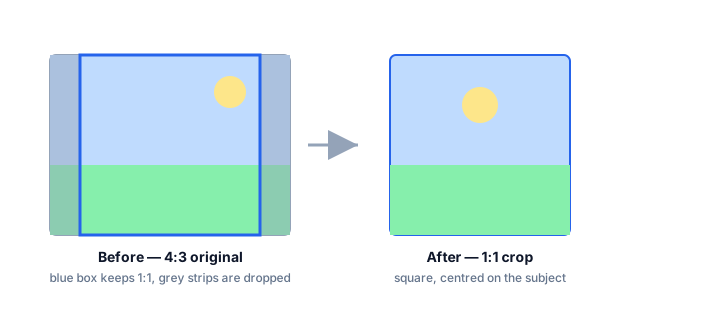
Cropping is one of the two ways to change a ratio without distorting the image — the other is padding. When you crop, you keep one dimension of the original and trim the other until the remaining rectangle reaches the target ratio. The subject survives, but the pixels outside the crop are gone for good.
The crop that wastes the least is the one that matches the shorter side. If your source is wider than the target, you keep the full height and cut the sides; if it is taller, you keep the full width and cut the top and bottom. This tool always chooses the least-lossy crop and shows the removed amount in pixels and as a percentage of the original area.
How the crop is calculated
The tool compares your source ratio with the target ratio and trims the longer side until they match.
- Work out the target ratio as a decimal by dividing its width by its height.
- Do the same for the source size.
- If the source is wider, keep the full height and set the crop width to height × target. If it is taller, keep the full width and set the crop height to width ÷ target.
- The pixels removed are the difference between the original side and the cropped side.
Worked example
A 4000 × 3000 photo cropped to 16:9 keeps the full 3000-pixel height and sets the width to 3000 × 16 ÷ 9 = 5333 — but 5333 is wider than the source, so instead the crop is width-limited: 4000 wide and 4000 × 9 ÷ 16 = 2250 tall, removing 750 pixels of height. That is the least-lossy 16:9 crop available from a 4:3 source.
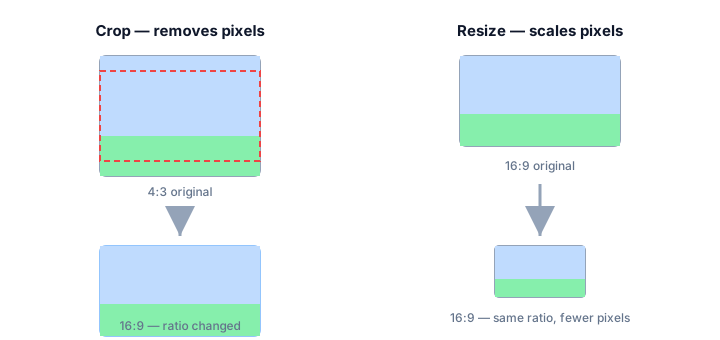
Image Crop Calculator FAQ
Does cropping reduce quality?
Cropping removes pixels, so the cropped image has fewer pixels than the original. It does not blur or re-compress what remains — the sharpness of the kept area is unchanged, but you have less of it.
Why crop instead of resize?
Resize keeps the whole picture and changes the shape, which distorts everything in it. Crop changes the shape by removing part of the frame, so nothing inside is stretched. If you must keep the whole scene, pad instead of crop.
How do I know which side gets cut?
The tool tells you. A source wider than the target loses width; a source taller than the target loses height. The removed-pixels line states the direction explicitly.