Image Resize Calculator
Resizing should never change the shape. Set a new width and the height follows automatically — or set a height and the width follows — so the image scales cleanly instead of stretching out of proportion.
Resize and keep the ratio
Set one new side; the other follows the ratio automatically.
Original size
New size — set one side
- Result ratio
- —
Resizing keeps the ratio, stretching ruins it
To resize a picture without distorting it, change one side and let the other follow the ratio. If the original is 4000 × 3000 and you need it 1920 wide, the height becomes 1440 because 1920 × (3000 ÷ 4000) = 1440. Set both sides independently and you have stretched the image instead — every face wider, every circle an oval.
This tool does the single-side calculation for you in both directions. It also shows the reduced ratio of the result, so you can confirm the resized image is still the shape it should be rather than a near miss from rounding.
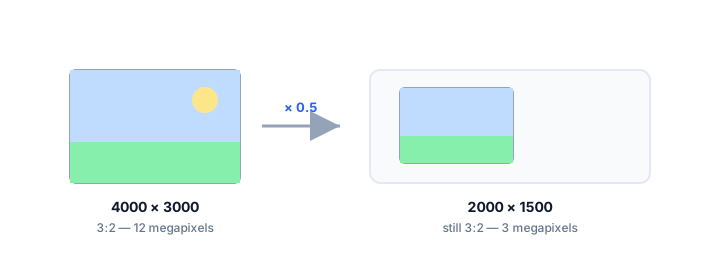
How the resize is calculated
The tool keeps the original ratio fixed and applies it to the side you set.
- Enter the original width and height; the tool derives the ratio from them.
- Set either the new width or the new height — whichever you know.
- The other side is computed from the ratio, then rounded to a whole pixel.
- The result is shown alongside its reduced ratio so you can confirm nothing stretched.
Worked example
('From 4000 × 3000, setting a new width of 1920 gives a height of 1920 × 3000 ÷ 4000 = 1440, so the resized image is 1920 × 1440. Setting a new height of 1080 instead gives a width of 1080 × 4000 ÷ 3000 = 1440, for 1440 × 1080. Both stay 4:3 because the ratio is what the tool preserves.',)
Image Resize Calculator FAQ
Does resizing to a smaller size lose quality?
Downscaling removes pixels, which is fine — the remaining image is still sharp at the smaller size. Upscaling adds pixels that were never captured, so the result looks soft; always resize down from a larger master rather than up.
What if my target size is not an exact multiple?
The calculated side is rounded to the nearest whole pixel, because a screen cannot display half a pixel. The result stays within a fraction of a pixel of the true ratio.
Is this the same as changing the ratio?
No. Resize keeps the ratio and changes the size. Changing the ratio is a crop or a pad, not a resize. If you actually need a new shape, use the crop calculator instead.